
Fix microphone and audio problems
Check microphone permission, volume, browser access, and connection state.
Most voice problems come from microphone permission, a missing microphone, muted audio, or a temporary connection problem.
Who this is for
Storytellers and helpers who can open the voice page but cannot hear, speak, or connect.
Before you start
- Use the normal secure Fablr website or app.
- Have access to the device's browser or system microphone settings.
- Close other apps that may be using the microphone.
What to do next
- Check that your device volume is up and not muted.
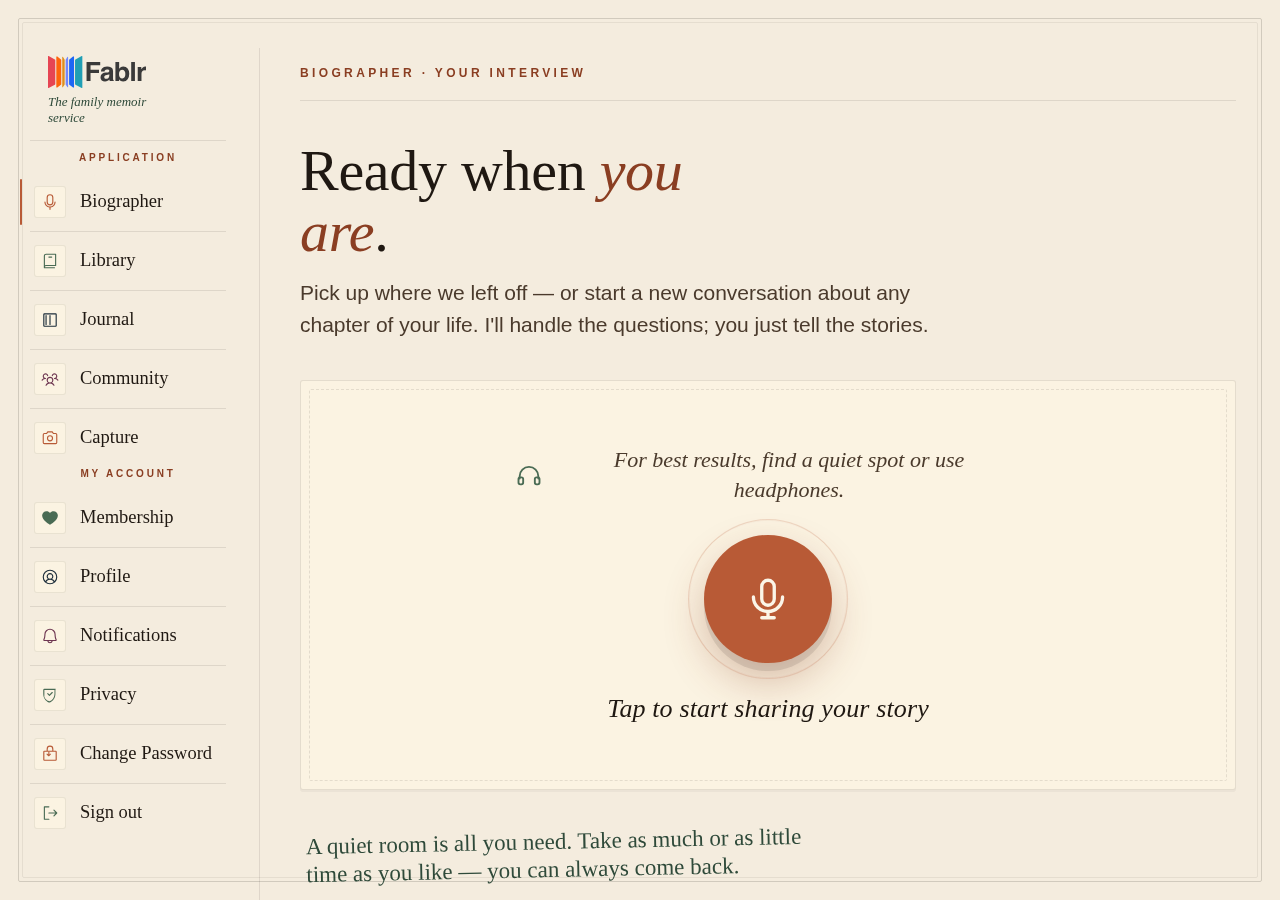
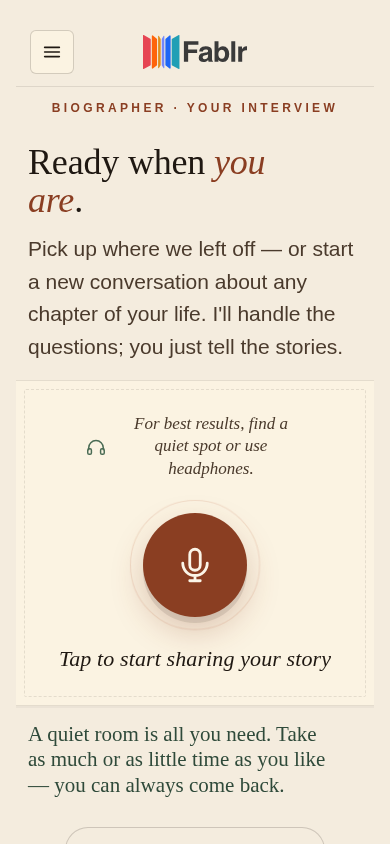
- Open the voice conversation page and tap Start conversation.
- Choose Allow when your browser or device asks for microphone access.
- If the page shows Enable Microphone, tap it.
- If the browser says the microphone is blocked, change the site microphone setting to Allow and reload.
- If Fablr says no microphone was found, connect a microphone or switch devices.
What you should see
How you know it worked
The page connects and shows listening or transcript activity after you speak.
If something goes wrong
Permission was denied and the browser will not ask again.
Open site settings, set Microphone to Allow, and reload.
The page says it needs a secure connection.
Reopen Fablr with the secure https address.
Still need a hand?
Reach our support team through the contact page. We are glad to help, and you do not need to sign in first.
Go to the contact page