
Add photos
Capture a new photo-based story or manage photos on an existing chapter.
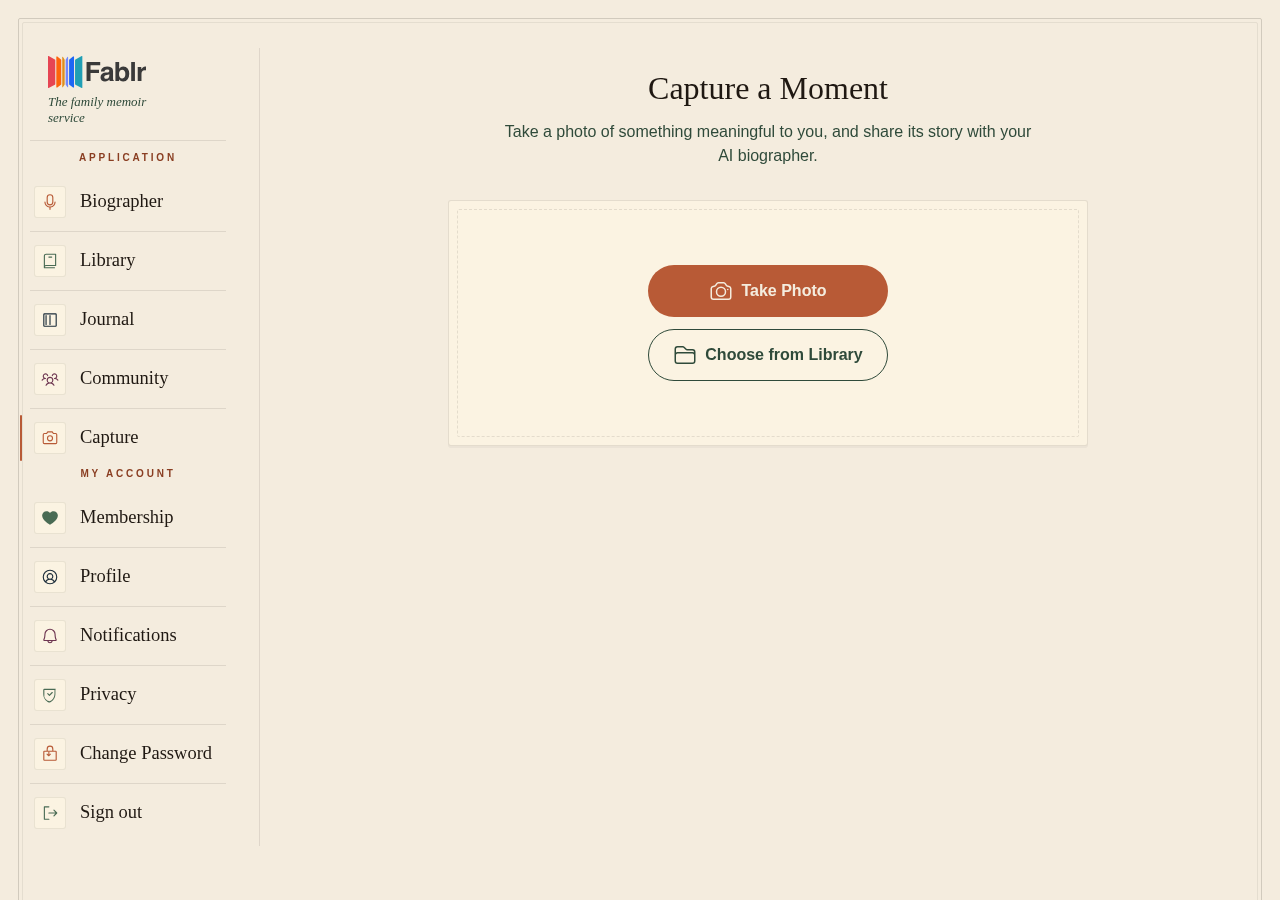
You can add photos in two places: use Capture a Moment to create a new photo-based story, or open an existing chapter in Your Book and use Photos to attach, reorder, caption, or remove photos. If you set Fablr up for someone else as their storyteller, you can add photos to their stories, but only they can caption, reorder, or remove them.
Who this is for
Storytellers and helpers adding photos to memories, chapters, and the finished book.
Before you start
- Sign in before opening the photo or biography pages.
- Camera capture works on HTTPS or localhost; Choose from Library works when live camera access is unavailable.
- Existing chapter photos are limited to 6 photos per story.
What to do next
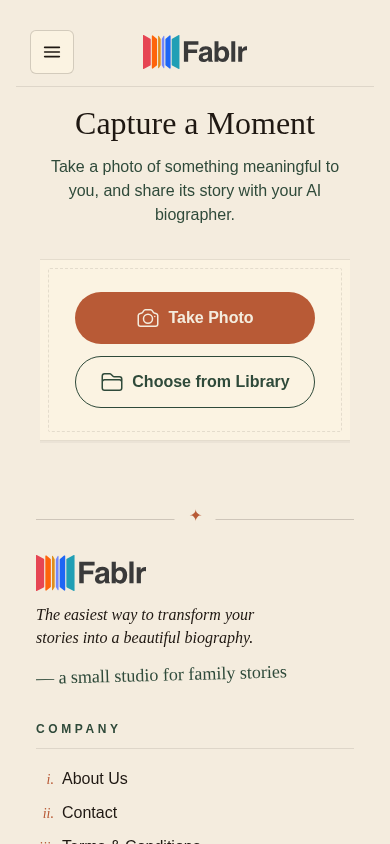
- To create a new photo-based story, open Capture a Moment.
- Choose Take Photo or Choose from Library.
- Review the preview, crop if needed, then select Use This Photo.
- Talk through the memory connected to the photo.
- When you stop, choose Save to keep the conversation as a finished story or Discard to start over.
- To add photos to an existing story, open Your Book, choose the chapter, then select Photos.
- Use Choose from device or Your photos, add optional captions, choose a primary photo, reorder photos, then select Save photos.
- If this is someone else's story and you are their helper, you will see Choose from device and Your photos but not the caption, reorder, primary, or remove controls. Those belong to the storyteller.
What you should see
How you know it worked
For Capture a Moment, the complete screen can show Story Captured or Saved, and the story appears in Your Book shortly. For existing chapters, the chapter shows the saved photo gallery, with the first photo displayed largest.
If something goes wrong
Camera access is blocked.
Use Choose from Library or allow camera access in your browser or device settings.
The photo limit is reached.
Remove a chapter photo before adding another one.
Fablr warns that a photo may print poorly.
Replace it with a higher-resolution version before compiling a book.
Still need a hand?
Reach our support team through the contact page. We are glad to help, and you do not need to sign in first.
Go to the contact page