
Download or export stories
Compile a finished collection, then use Preview or Download PDF when it is ready.
Fablr does not show a separate download button for individual stories in Your Book. To export a finished collection, compile your published stories into a book, then use Preview or Download PDF after the compilation is ready.
Who this is for
Storytellers who want a PDF or print-ready copy of the finished story collection.
Before you start
- Sign in to the account that owns the stories.
- The compile page requires active access and at least 10 published stories.
- Make story edits and photo changes before compiling.
What to do next
- Open Your Book and review the chapters that are there.
- Make edits or add photos before compiling.
- Open the book preparation page.
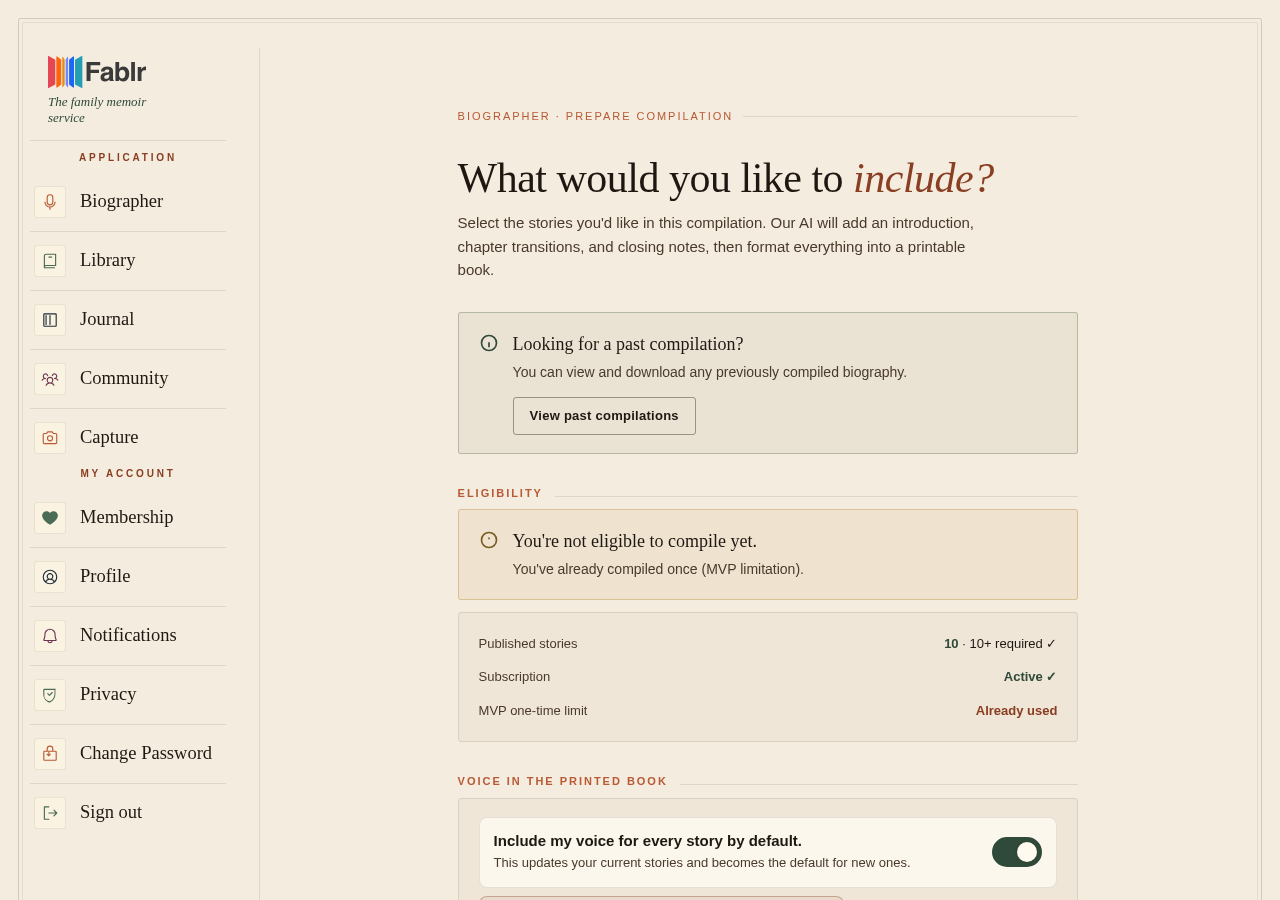
- Check the eligibility panel for published-story count, subscription status, and compilation availability.
- In Stories to include, keep the stories selected or use Select all or Deselect all.
- Select Start compilation.
- Use My Compilations to check status or find past compilations.
- When a compilation is ready, use Preview, Download PDF, or the details page for that compilation.
What you should see
How you know it worked
The completed compilation page says Your book is ready and shows Download PDF and Print-accurate preview. My Compilations marks completed items as Ready and shows Preview, Download PDF, and Details.
If something goes wrong
The preparation page says you are not eligible.
Check for fewer than 10 published stories, inactive access, or an existing completed compilation.
A compilation is Pending or Processing.
Use Check status instead of trying to download.
A compilation failed.
Use Retry from My Compilations if the action is shown.
Still need a hand?
Reach our support team through the contact page. We are glad to help, and you do not need to sign in first.
Go to the contact page